





This Black Friday: Get 25% off a paid Every subscription when you upgrade—full access to Every’s AI tools, expert courses, model reviews, and hundreds of essays. Offer ends December 1.
Was this newsletter forwarded to you? Sign up to get it in your inbox.
For a decade, browsers have been the least sexy part of the internet experience. Google Chrome dominated so thoroughly—over 70 percent global market share—that it felt like the conversation was over. Apple’s Safari stayed by virtue of pre-installations on Macs and iPhones. Firefox retreated; Microsoft’s Internet Explorer quietly retired.
And then, out of nowhere—well, not nowhere, as loyal Every readers might remember—the ground shifted.
AI browsers—a web browser with AI woven into the experience of using the internet— from OpenAI, Perplexity, and The Browser Company all arrived, packaged in flashy launches. The browser wars are officially back.
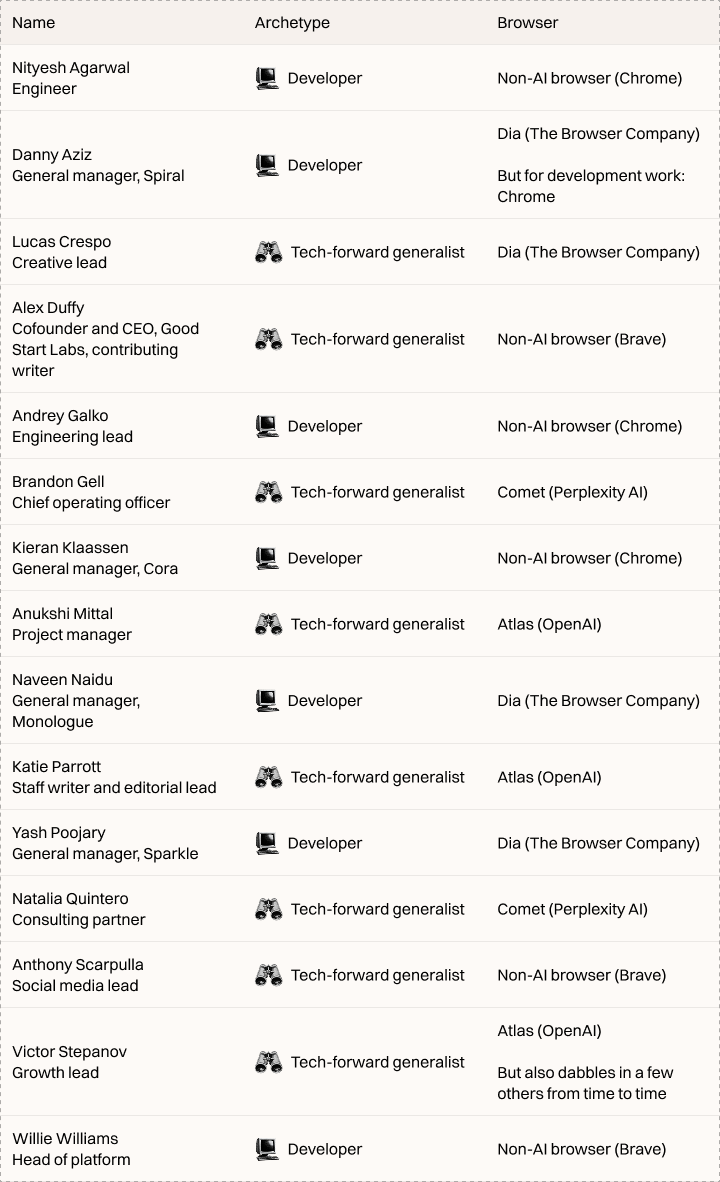
Many members of the Every team have switched over to an AI browser, but a near equal number still use Chrome or independent browser Brave—proof of how nascent AI browser use is, even among the tech curious. The unconverted say that humans can still do many tasks faster than the AI agents baked into AI browsers. Worse, you often have no idea when—or whether—it’ll finish a task.
We dove into the AI browsers that the Every team are using, how they fit these new AI features in their workflows, and what they still wish was better. We’ve also asked those who don’t use AI browsers what they would like to see improve before making the jump.

We’re the AI company that doesn’t have churn.
We actually have a 127% net revenue retention (our voice agents are pretty good).
They sound human, run 24/7, and never ask for PTO.
If you want to see for yourself, you can try Bland’s Voice AI for completely free.
Or for enterprises, you can book a call directly.
Before we get into the specifics of each browser, here are the browsers that the team is using.
Atlas: OpenAI’s browser that brings ChatGPT to every corner of the web
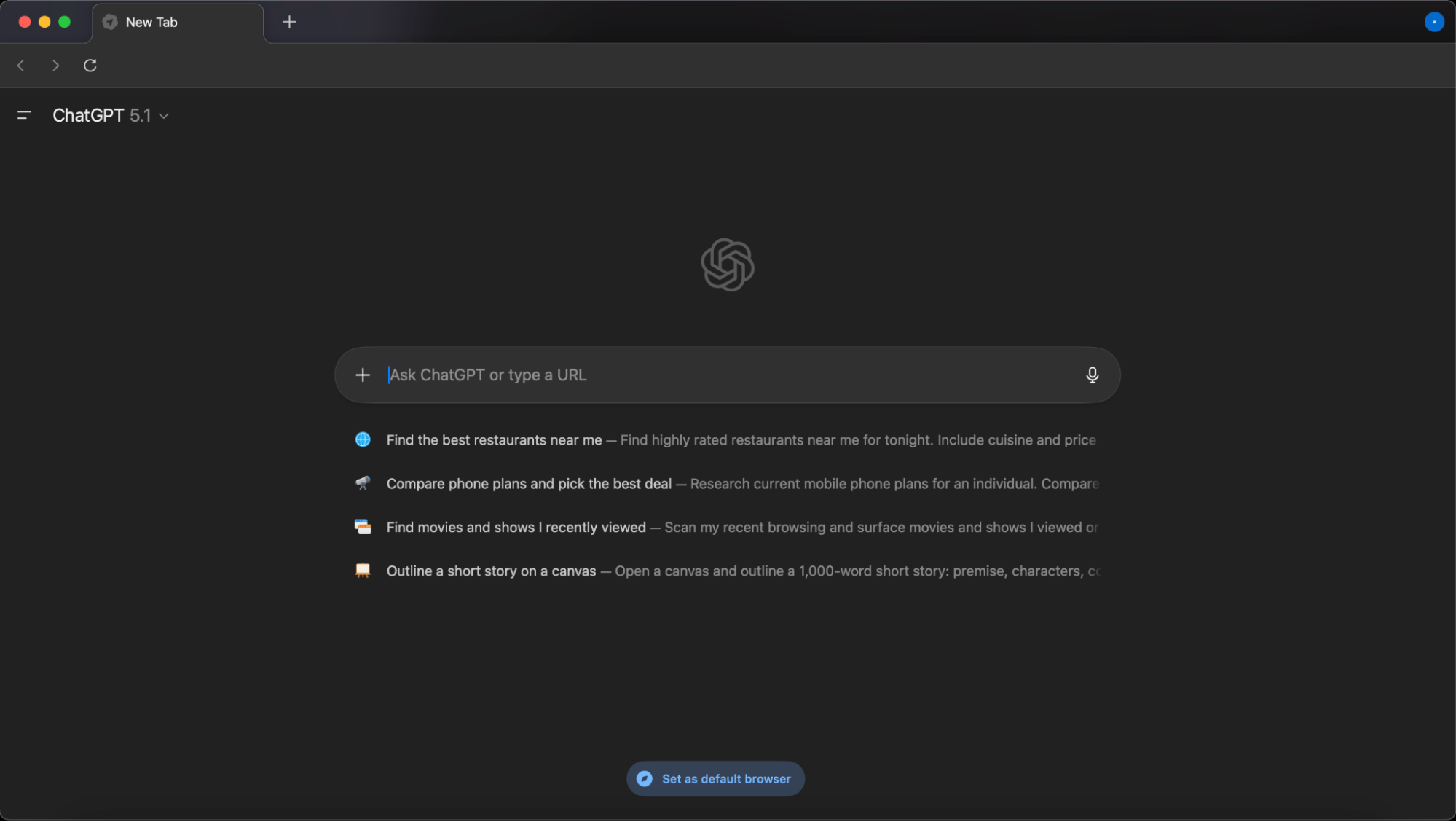
In the last week of October, OpenAI finally released its long-awaited browser: Atlas. It’s available for anyone to download and use, even if you’re not paying for ChatGPT. The browser is currently macOS-only, with support for Windows and other platforms on the way.
Paid users get additional capabilities like Agent Mode, where you can instruct an AI to click around the web and complete multi-step tasks for you.
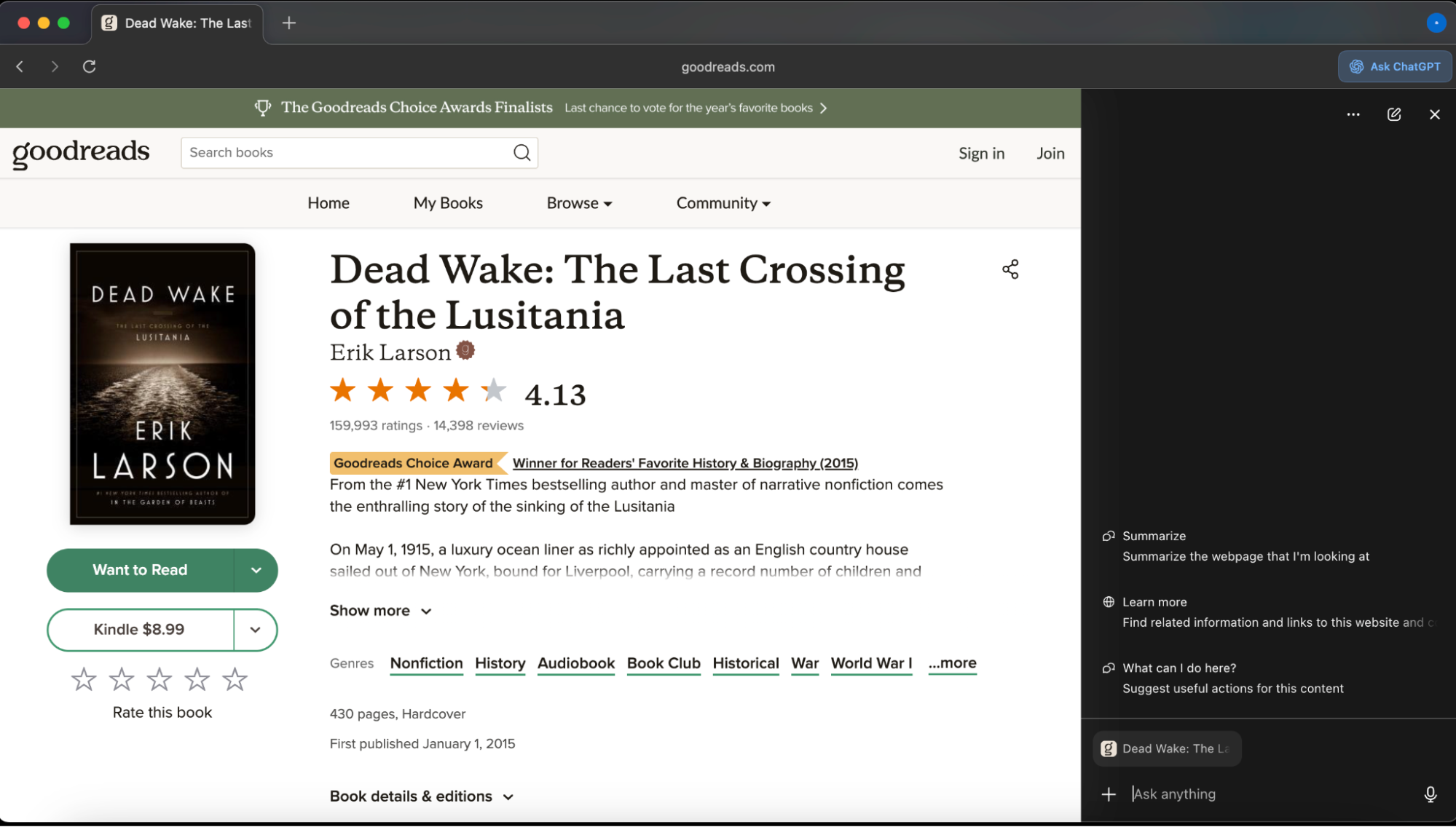
Inside Every, Anukshi Mittal and Victor Stepanov—both tech-forward generalists—are the browser’s most consistent users. Atlas makes ChatGPT, and the context it needs to be useful based on your browser patterns, available wherever you are on the web in a sidebar, eliminating the need to switch between tabs or copy and paste text from a website to the chatbot. “[I]nstead of taking a screenshot and uploading it…I can just open the tab and ask questions in the right side panel,” Victor says. “This alone already makes my life so much simpler.”
How Every’s team fits Atlas into our workflows
Put two AI agents together to generate first drafts for you
Normally, when you ask Spiral to create a draft for you, it asks a series of clarifying questions—about the audience, tone, perspective, and so on—before doing so. Victor offloads this back-and-forth to Agent Mode. He gives the Atlas agent all the context it needs, tells it to open Spiral, and instructs it to answer Spiral’s clarifying questions just as he would. From there, the agent and Spiral carry on the conversation autonomously until the draft is ready for Victor’s review. “I give the agent all the necessary information and context, send it to Spiral with a note that it should ask all the necessary questions if needed, and follow up with Spiral on its own until it gets the writing done…they figure it out between themselves and get me [the] drafts delivered.”
Also on the writing front, Victor calls out Atlas’s in-line writing assistant; as a non-native English speaker, it helps him articulate his thoughts more clearly without interrupting his rhythm.
AI that adapts to your context
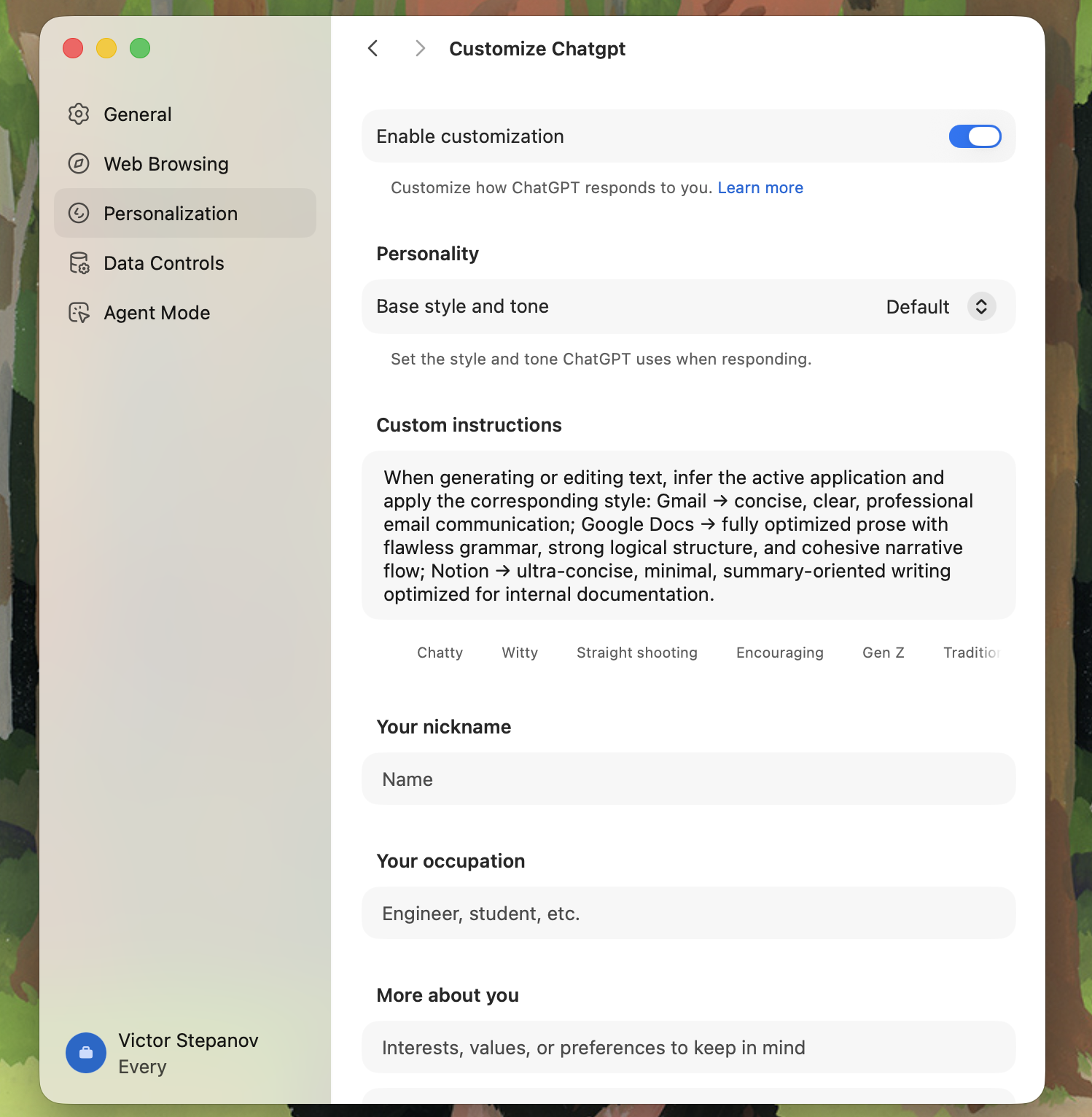
Using the “personalization” field in the browser’s settings, Victor sets rules for how ChatGPT should behave in different environments—writing an email versus drafting in Notion, for example—so the model effectively puts on a different “hat” depending on where it is. “I just [typed out] every behavior I want it to follow when I have a certain page or website open,” he says. “It’s not fool-proof but it works most of the time.”
Answer your questions as you read
Anukshi does all her reading on Atlas, because of how easy it is to interact with the material —if she has a question, she can call up ChatGPT in the panel without having to shuttle between tabs. She recently used this feature to better understand the arguments in Dan Shipper’s essay on developing a new worldview while living in a world with AI. Other AI browsers can do the same, but Atlas is the first one she’s used, and with OpenAI’s huge user base, she suspects many others are in the same boat.
Let AI handle the drudgery you don’t have time for
Anukshi hands non-urgent administrative tasks to Atlas’s agent, such as checking if a book was available at a public library she was visiting and looking up new restaurants nearby. She admits it’s too slow when she needs something done quickly, but for background chores, it’s ideal.
Where Atlas could be better
For all the things Atlas gets right, there are still places where it stumbles. Here are a few rough edges the team noticed:
Sometimes you just want to Google it
In Atlas, you type into a single search bar, and the browser decides whether your query should go to ChatGPT or to Google (you can manually toggle it, but the default behavior often guesses wrong). Sometimes you just need a plain old Google search for something like “3 p.m. in Amsterdam is what time in NYC”—and Atlas can be a little too eager to route everything to ChatGPT. (Time zone conversions are notoriously challenging for LLMs to tackle.) “I get annoyed when I type something that’s clearly a search query and it just wants to chat,” Katie Parrott says. Victor feels the same, adding that when Atlas runs a full ChatGPT query he can “physically feel tokens being wasted for nothing.”
Atlas’s developer experience falls short
Engineer Naveen Naidu’s biggest frustration with the browser was how it handles the DevTools console—a window for developers to run commands and debug code. Instead of opening in a sidebar the way it does in Chrome, Atlas launches the console in a separate window. Toggling between two windows quickly becomes irritating, and is one of the reasons he switched away from Atlas.
Memories you can’t control—and suggestions that miss the mark
Victor wishes the way Atlas handles memory was more user-friendly. For example, he can’t manually add things he wants the AI to remember or edit its memory directly. He also can’t reference them directly inside chats. He also finds the suggestions that appear under Atlas’s search bar hit-or-miss—often a mix of whatever he was last working on and a few news items he might find interesting.
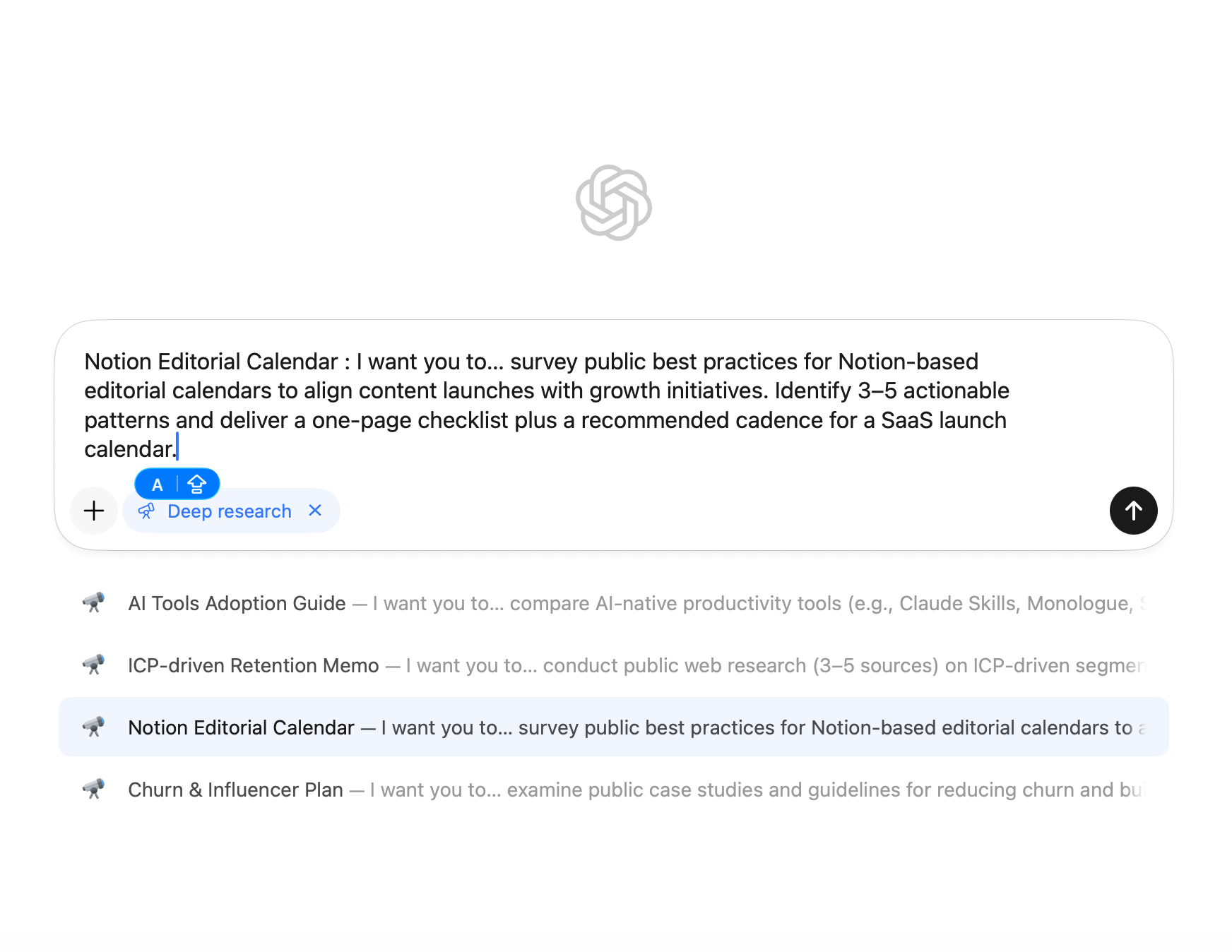
What Victor really wants is something smarter: “Identify chats for the past 24 or 48 hours that might be interesting to continue [or] resurface, [and] show me a quick prompt how to continue conversation there.”
Dia: The Browser Company’s thoughtful take on an AI browser
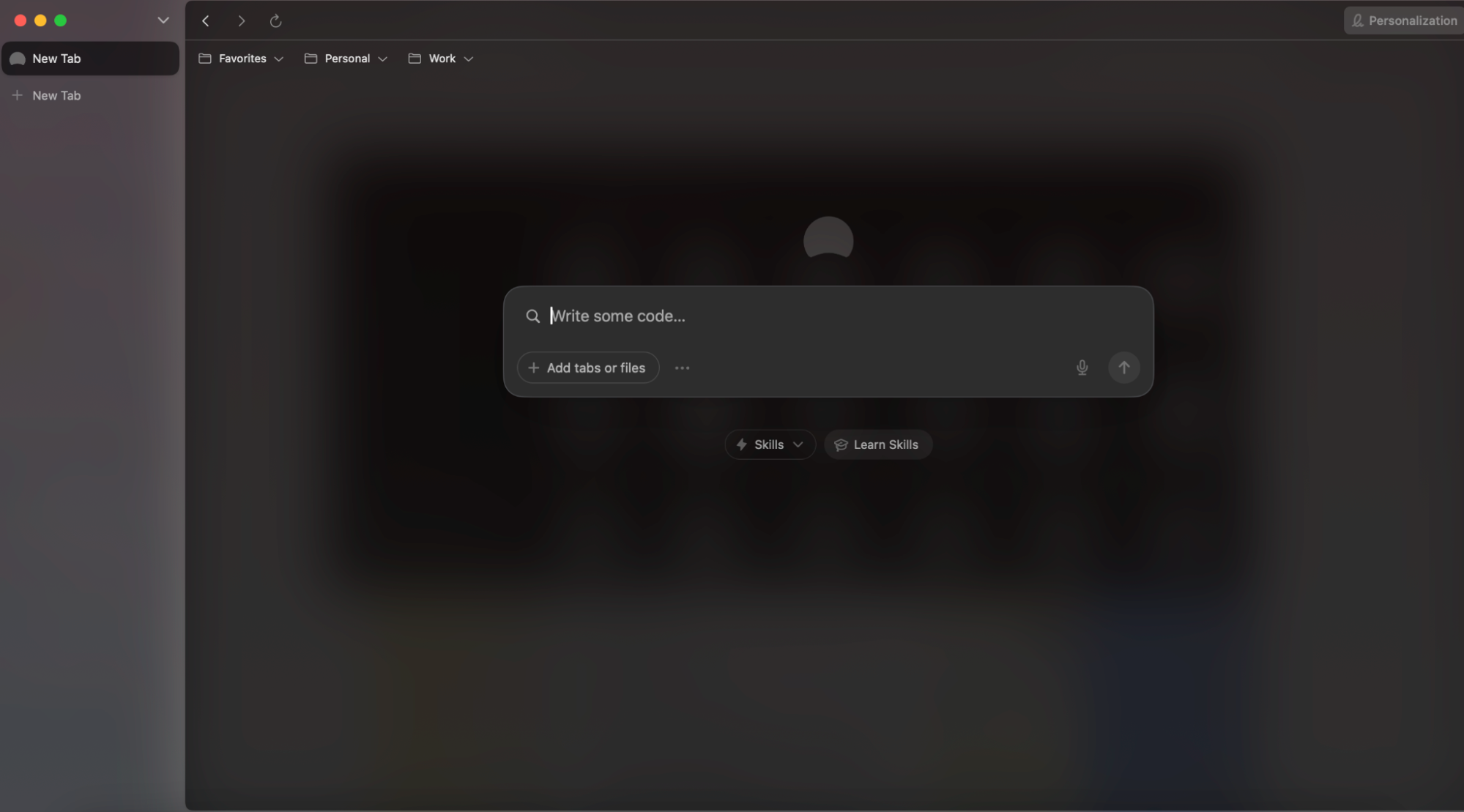
Dia is the latest browser from The Browser Company, the eponymous New York-based startup that was acquired by software giant Atlassian in September. The team’s first browser, Arc, which first launched in 2023, is still beloved by many inside Every, like executive operations lead Jalaiyah Bolden, editor in chief Kate Lee, and me.
Dia’s features include a side-panel AI assistant with access to all your tabs and windows, so you can ask it to “summarize this article” or “look at all the Airbnbs I’m considering and tell me which one is closest to the beach” without ever leaving the page. It also introduces “Skills,” shortcuts designed to automate your repeatable workflows, such as writing up a quick summary of what you did all day, and fact-checking the text on a webpage.
Dia is free to download and use. The free tier gives you access to all core features, while a $20 per month Dia Pro subscription unlocks unlimited chat usage.
The Dia fan club at Every includes three developers—Yash Poojary, Danny Aziz, and Naveen—and one very enthusiastic generalist, Lucas Crespo. All three said that they chose to undergo the high-friction process of switching browsers because it had been made by The Browser Company. The Browser Company is unusually good at crafting products that feel handmade, full of small, intentional details—and at telling a story that makes you want to be part of it.
How Every’s team fits Dia into our workflows
Get answers without breaking flow
Every’s Dia stans have stayed for a very practical reason: the AI chat feature. Yash relies on it so heavily—especially when he’s reviewing a codebase and has a quick question—that he regularly hits the rate limit. It’s changed the way he interacts with AI entirely. “If I’m not in the terminal, I’m in the side chat. I hardly use ChatGPT or Claude in the browser,” he says.
Lucas feels the same. He still opens a dedicated ChatGPT or Claude tab for deep work, but for quick, contextual questions—summaries, clarifications, lightweight research—he prefers being able to select text and talk directly to the page.
Chat with ALL your tabs at once
Lucas loves how Dia lets him chat across multiple open tabs and make comparisons between them. He doesn’t actually want his browser to act autonomously; he values how Dia makes him feel like he’s in the driver’s seat.
Keep your work (and life) organized
Dia lets a single user create multiple profiles, a feature Naveen loves. He has a personal one, an Every one, one dedicated to Monologue, and so on. Being able to split his browser this way allows him to cleanly separate out context for each of these projects.
Enjoy using a browser that’s just really good at what it does
Danny stuck with Dia over Chrome for reasons that have nothing to do with AI. For him, it’s simply a better browser: fast, great keyboard shortcuts, and a split-screen view.
Where Dia could be better
Dia can’t decide where your query should go
Dia uses one search bar on its home screen (in addition to the AI assistant that appears as a sidebar when you’re on a web page already). Every time you type something, the browser has to guess whether you want a normal Google search result or an AI response—and Lucas finds it guesses wrong most of the time. For instance, the words “how to” pushed him into chat when he wanted a Google search, while typing a name—“Benjamin Franklin”—sent him to Google when he meant to chat. The browser feels overly opinionated about which queries go where, and in his experience, it guesses 80 percent of the time.
Too much friction to use certain features
Yash feels Dia could guide users from a need to the right “Skill” more smoothly; right now, you have to go in and enable them manually.
No way to view past chats
While trying to retrace how he’d been using Dia for this very piece, Naveen went searching for his chat history with the AI—only to realize there’s no way to view it.
Comet: Perplexity’s fast, smart AI browser
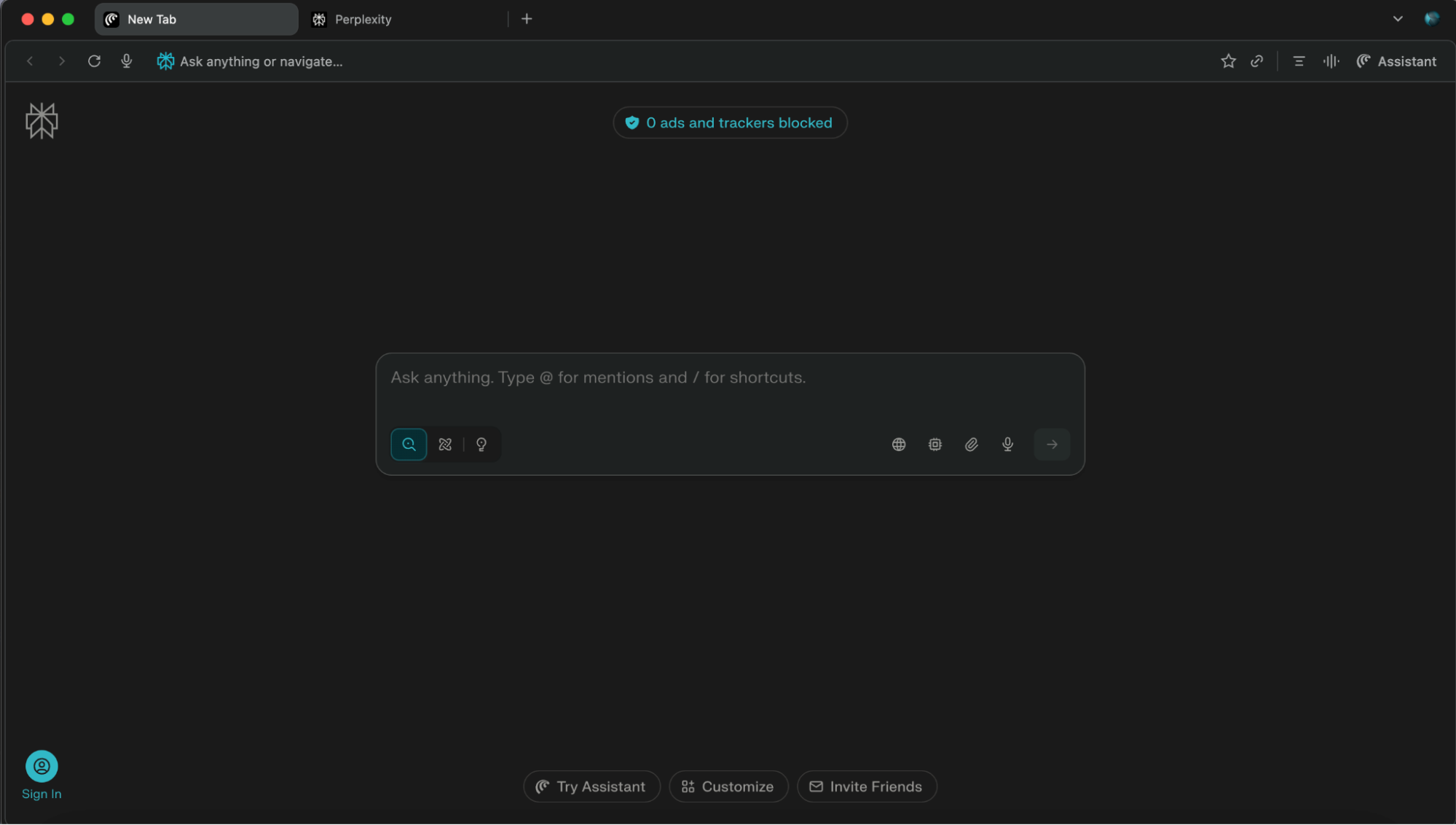
Comet, Perplexity AI’s browser, is another one with branding I personally love. There’s something about the images of the cosmos that invoke a sense of wonder and curiosity. Similar to Atlas and Dia, the browser’s main feature is an AI assistant that lives in the sidebar that appears on every web page you browse, ready to answer questions, summarize whatever page you’re on, or even handle small errands—like going through retail websites and finding the pet food of your choice.
A version of Comet is free to download on both Windows and Mac. Subscribers to Perplexity’s Pro plan ($20 per month) or Max plan ($200 per month) get additional perks, including access to higher-performing models and early releases.
At Every, Natalia Quintero and Brandon Gell are the two most consistent Comet users. Natalia had already experimented with a few AI browsers: She appreciated Dia’s charm but felt its AI features were layered onto an otherwise standard browser, while Atlas showed promise but felt too buggy to rely on day-to-day; specifically, if she tried to go to a website by typing its name, Atlas would hijack the request and give her a ChatGPT answer instead. What pulled her toward Comet was curiosity about how Perplexity’s browser would work in tandem with Perplexity’s AI email assistant that she uses. “I find Comet is much better at choosing when to be an LLM v. [a] browser,” she says.
Brandon came to Comet from a very different angle. He’d tried Arc and admired the craftsmanship, but it felt overdesigned, or “too fancy,” for his needs, with features he never used. “I like that Comet was stripped down,” he says.
How Comet fits into our workflows
When your browser and inbox become one powerful workflow
For Natalia, Comet’s real value is how tightly it integrates with Perplexity’s email assistant. The assistant scans her inbox and generates a brief for all the meetings she has the next day, and then, as the day unfolds, updates her to-do list based on her email exchanges and her back-and-forth with it. And because so much of her work lives inside her inbox—different client projects and figuring out how to automate each of their workflows—being able to ask all her questions to an AI in the sidebar without having to switch tabs is a real painkiller.
Get your document’s first draft done for you.
When it’s time to produce a document, Natalia hops into Comet, which lets her build drafts agentically in a way that feels similar to Atlas’s Agent Mode, just inside Perplexity’s ecosystem. For example, she’ll ask Perplexity’s email assistant to summarize an email thread with a client’s availability and the topics they want to cover in training sessions, and then have Comet turn that into a neatly organized document or spreadsheet.
A browser that does the boring clicking for you
Brandon loves that Comet can actually click around the web on his behalf—finding buried settings inside web apps, reading through GitHub READMEs (the documentation files that explain how a software project works) to understand a code repository better, or even doing small errands like shopping and adding items to a cart.
Where Comet could be better
If the basics aren’t quite right, the AI won’t matter
When Brandon uses keyboard shortcuts to jump between tabs, Comet cycles through them in the order they appear across the top of the browser—not in the order he used them—which breaks his flow. It’s a small detail, but to him it underscores a broader point about building AI products: The non-AI features matter just as much as their smarter counterparts. “Lesson learned for me is the small non-AI features are still non-negotiable to me [and] ultimately something super easy for these companies to [fix].”
Even smart AI slips up—so you still have to keep an eye on it.
Every so often, when Natalia asks Comet to scan her inbox and update her to-do list, it skips over an email thread that reflects the latest status of a project. That means she has to go back, correct it, and double-check its work—a reminder that, like any AI product today, you still need to keep an eye on what it produces.
Where AI browsers fall short for the people who use AI the most
Many of our heaviest AI users don’t use AI browsers at all: Alex Duffy, Kieran Klaassen, Andrey Galko, and Willie Williams all stick to more traditional setups—and for good reasons.
Simply… not there yet
They’re not using AI browsers because, for power users like them, the in-browser AI experience still falls short.
Alex resonates with something he heard Tao Zhang, the co-founder of Manus—an AI tool that lets anyone carry out real-world tasks—say at the European AI conference RAISE. Zhang described how Manus began: He noticed people constantly copying and pasting in and out of ChatGPT, built a Chrome extension to reduce that friction, and eventually a full browser. But when the team used their own browser before launching it, something felt off: It was unsettling to watch the AI do tasks that they knew they could do faster, all while having no real sense of when the AI would finish them. That experience pushed them to pivot away from the browser they’d been building and instead launch Manus in its current form. Alex doesn’t feel right using AI browsers for similar reasons, and will be more open to trying them out when they get faster and more capable.
On the other hand, Nityesh Agarwal tried Atlas, and Willie, Dia, but neither found the experience good enough to justify the friction of switching browsers. “Even though [Atlas] is built on the same engine as the Chrome browser,” Nityesh says, “it’s got some broken things which are just a deal breaker.” A janky DevTool console opened in a separate window, and his extensions didn’t migrate over from Chrome. Willie felt similarly: He wasn’t going to change his habits unless the alternative was “10x better.” Dia didn’t hit that bar, leaving him feeling like AI was being “bolted onto” a browser that didn’t really need it.
For Andrey, the hesitation comes down to practical details: Most AI browsers don’t have mobile apps, and he’s a heavy Safari user on both his iPhone and Mac, so he worries about how his devices would sync if he switched away. He’s tried Comet, Atlas, and Dia, and while the AI features are interesting, he never really finds himself needing them; he doesn’t mind opening a ChatGPT or Claude window when he has a question. He also thinks that in the long run, all browsers will become AI-powered anyway, and with Google’s massive Chrome user base, it’s likely they’ll keep weaving Gemini directly into the browser, possibly for free or very cheaply—which makes staying on Chrome the sensible choice.
For web developers, Chrome is a practical choice
Danny and Kieran Klaassen build for the web, so using Chrome—the browser most of the world actually uses—makes more sense to them. While Danny uses Dia sometimes, he does most of his development work in Chrome.
AI’s big privacy problem
Anthony Scarpulla cites privacy concerns: “As a social media manager, I’m more concerned with possible security breaches than anything, and don’t love having a potential rogue AI agent running amok in my browser.” He’s confident we’ll eventually reach a point where those risks are mitigated, but for now, it’s not worth making the jump.
What does the Every team wish their browser could do?
With Christmas around the corner, everyone’s building a wishlist—and here’s what the team wants AI browsers to learn next.
Let users manage their own AI memories
“I want to be able to add, group…and store memories—and let them compound over time to turn them into my personal bank of knowledge—and then reference them in chat when needed.”—Victor
A browser that helps you be a better person
“Dia on my phone. Also, a daily analysis of my work—since it already has a lot of context about my day…[for example] how much did I drift from a task, where did I get blocked. [I want to] use it as a tool for self‑improvement.”—Yash
More options built into the browser
“I would love to have a baked-in VPN. I would also love the ability to…open a website…and in the chat window, select which AI model I want to use for a specific question.”—Lucas
Teach your browser and put your tasks on autopilot
“I wish…I could create AI-powered macros—where [the AI] can follow me, do something once, and then learn from the actual thing that I’m trying to do, and then I can tell it to go do that thing. An example would be reading through user feedback and replying to users who just need a link to an FAQ page or the knowledge base or something, and if it could just do that for me whilst I’m doing something else in the background.”—Danny
Offload the boring parts of social media
“[On my wishlist is] some cool content automation/workflow stuff. For example, the ability for it to know when my editor has approved certain social posts by scanning my Google Docs, then it can auto-draft it into Twitter or Typefully for me to review prior to posting.”—Anthony
Voice-first browsing, please
“As for the [wishlist] feature, what I really want is a fully voice controlled agentic browser. I want to speak and take actions on my browser like I do when [I’m] coding now.”—Willie
AI that can master the tools you use
“I want more specific skills in Comet…I do a lot of work in Google Sheets, I want it to have a deep skill set in Google Sheets. More specialized skills [beyond answering general questions] would be nice.”—Brandon
Rhea Purohit is a contributing writer for Every focused on research-driven storytelling in tech. You can follow her on X at @RheaPurohit1 and on LinkedIn, and Every on X at @every and on LinkedIn.
To read more essays like this, subscribe to Every, and follow us on X at @every and on LinkedIn.
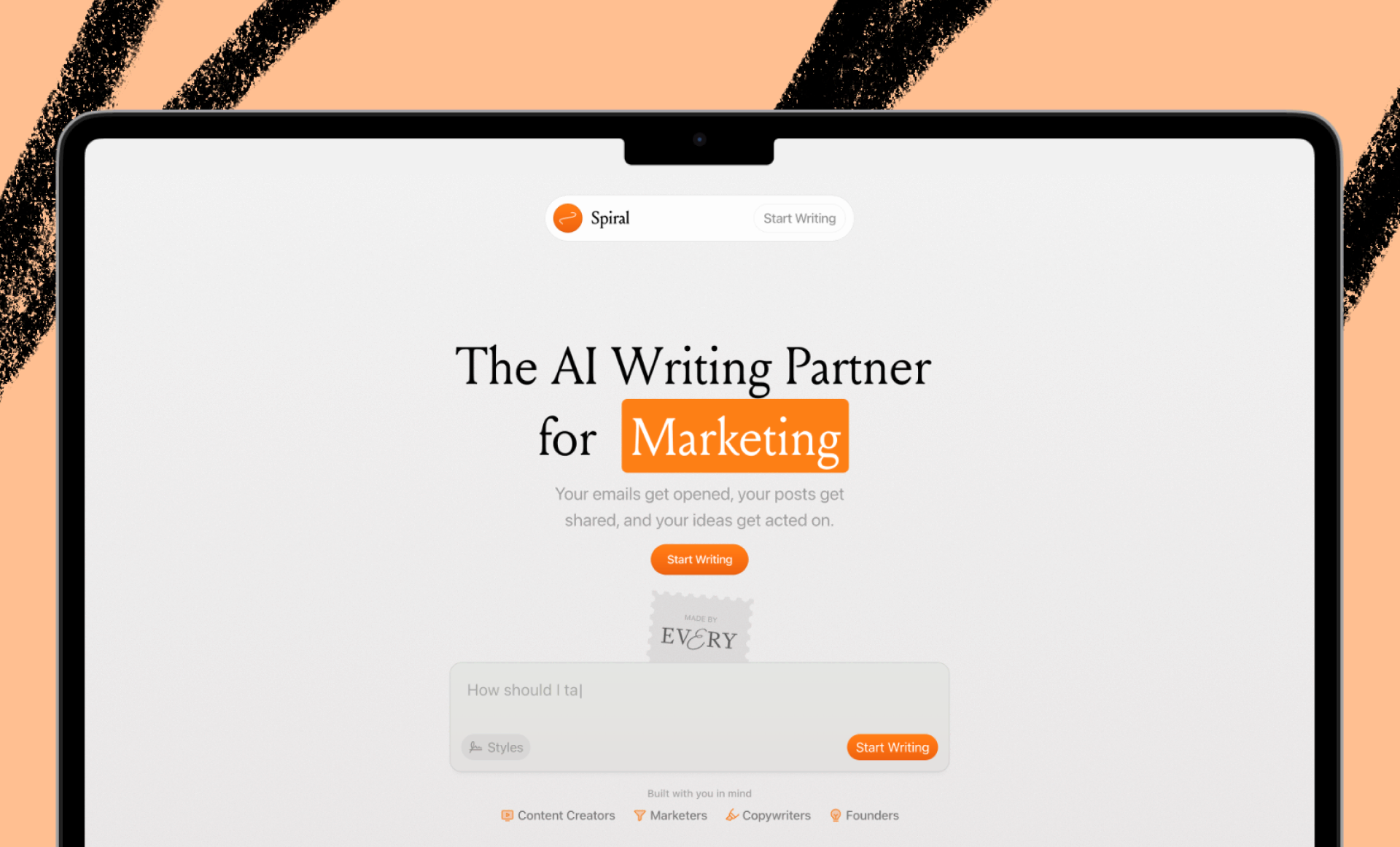
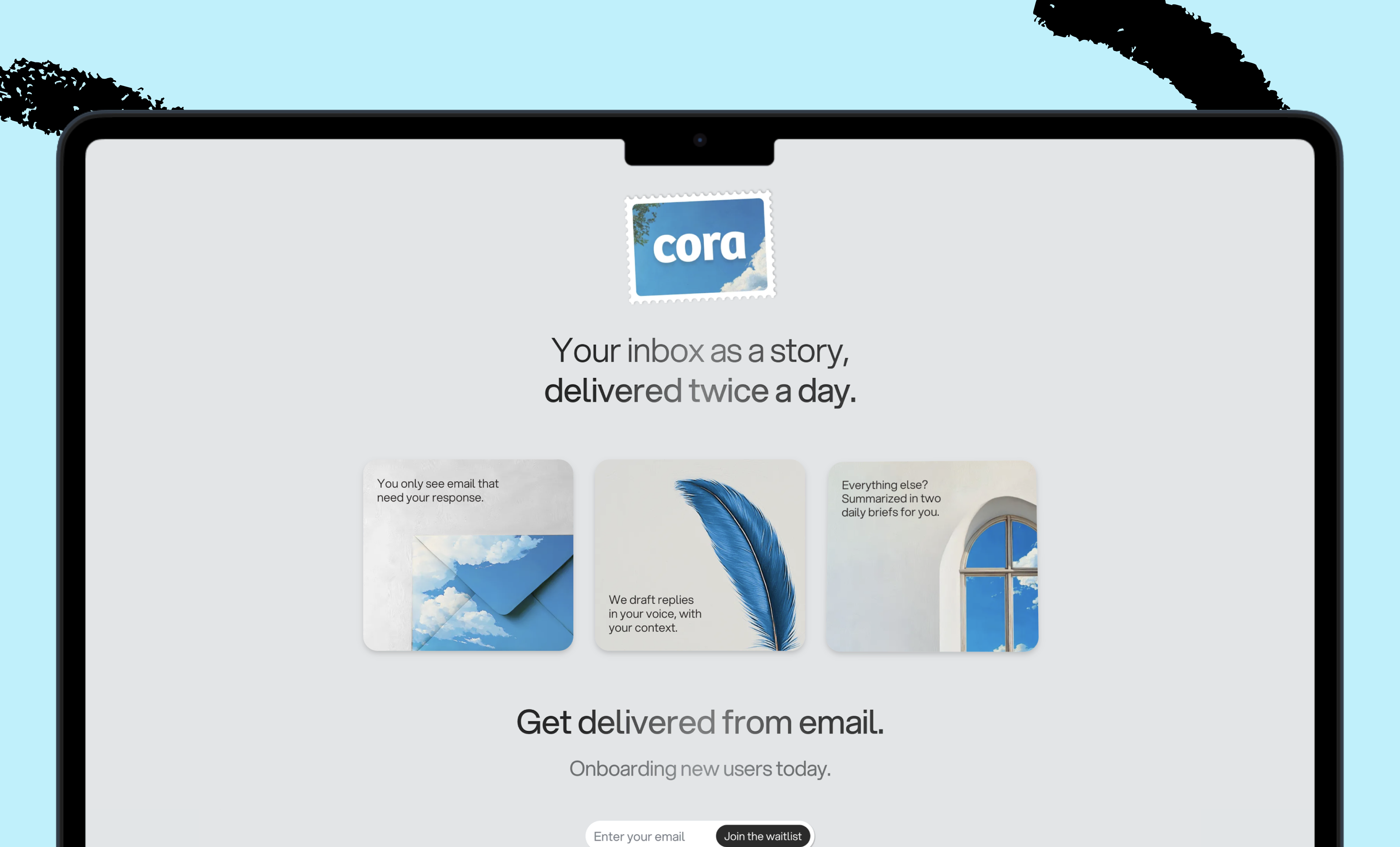
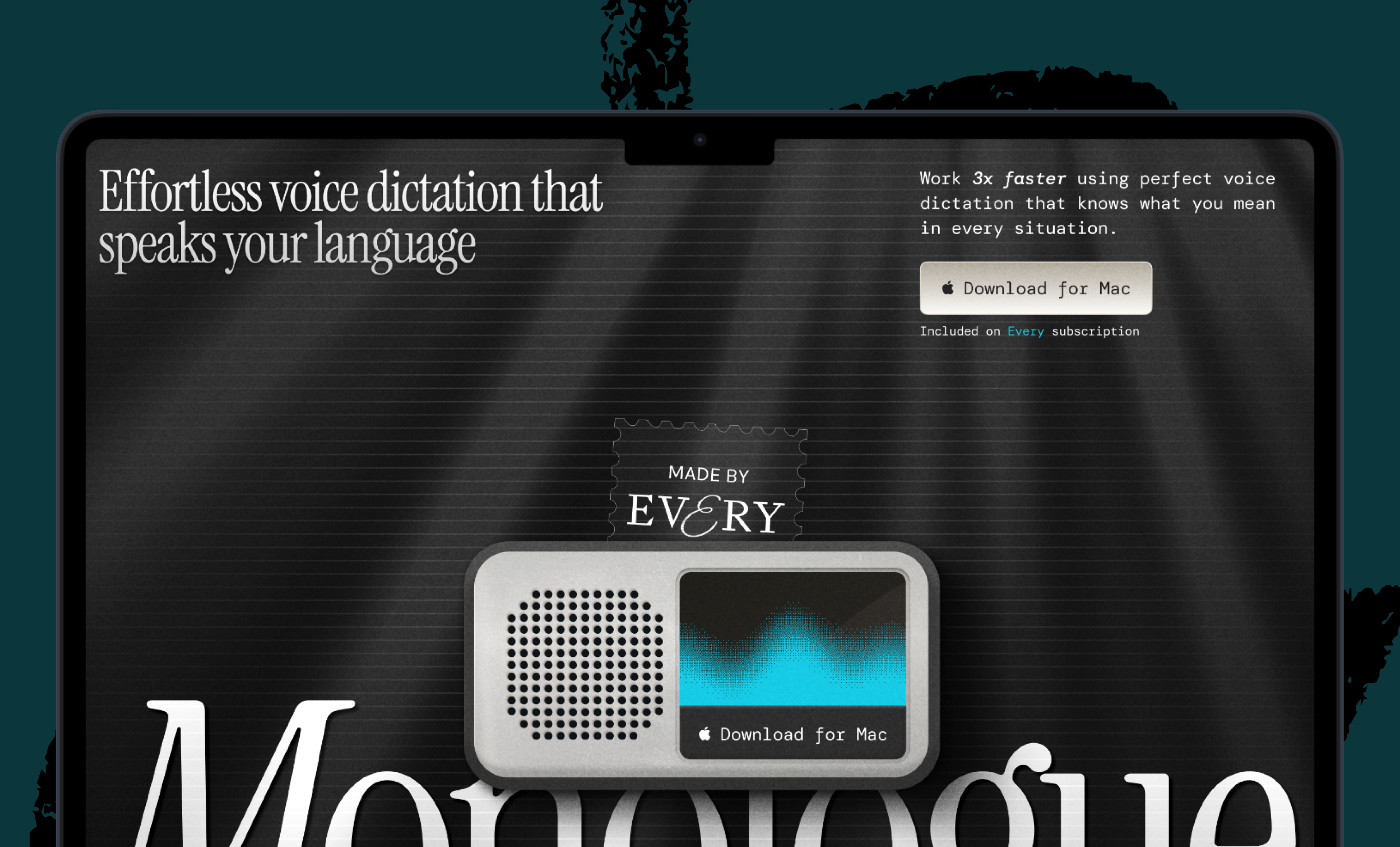
We build AI tools for readers like you. Write brilliantly with Spiral. Organize files automatically with Sparkle. Deliver yourself from email with Cora. Dictate effortlessly with Monologue.
We also do AI training, adoption, and innovation for companies. Work with us to bring AI into your organization.
Get paid for sharing Every with your friends. Join our referral program.
For sponsorship opportunities, reach out to sponsorships@every.to.
The Only Subscription
You Need to
Stay at the
Edge of AI
The essential toolkit for those shaping the future

"This might be the best value you
can get from an AI subscription."
- Jay S.
 Every Content
 AI&I Podcast
 Monologue
 Cora
Cora
 Sparkle
 Spiral
Join 100,000+ leaders, builders, and innovators

Email address

Already have an account? Sign in
What is included in a subscription?
Daily insights from AI pioneers + early access to powerful AI tools

 Front-row access to the future of AI
 In-depth reviews of new models on release day
Playbooks and guides for putting AI to work
Prompts and use cases for builders
In-depth reviews of new models on release day
Playbooks and guides for putting AI to work
Prompts and use cases for builders
In-depth reviews of new models on release day
Playbooks and guides for putting AI to work
Prompts and use cases for builders
In-depth reviews of new models on release day
Playbooks and guides for putting AI to work
Prompts and use cases for builders
 Bundle of AI software





 Dan Shipper
.png)

 Katie Parrott
 Reviews of new AI models on release day
Comments
Don't have an account? Sign up!
I'm surprised no one mentioned Edge, which has been using Copilot in its sidebar for quite a while. Edge may be the best Chromium browser once you take out its garbabeware and Microsoft tracking.
It was good to read up on Every's team on browser preferences.