


.png)
 December 1, 2025


Tl;dr: Two hundred people joined us on Zoom on November 19, many of them with no experience building software or writing code. Eight hours later, they’d each built and deployed a working project using Claude Code, Anthropic’s AI-powered coding assistant. Like all good students, they asked lots of great questions of the Every team and CEO Dan Shipper, who hosted our inaugural cohort of Claude Code for Beginners. The questions they asked weren’t just about syntax or setup. They were also about mindset, and the trust needed to collaborate with a tool that can work autonomously. If you’re getting started with Claude Code, chances are you’ll hit the same obstacles and have the same queries. Here’s what everyone asked, and how we answered them, as compiled by engineer Nityesh Agarwal.
A paid Every subscription keeps you at the cutting edge of AI, from pieces on our favorite browsers to productivity apps and expert courses. Today is your last chance to take advantage of our Black Friday offer and get 25 percent off if you upgrade to a paid annual subscription.—Kate Lee
Was this newsletter forwarded to you? Sign up to get it in your inbox.
Setup and installation
1. Will Claude Code work on Windows?
Yes! Claude Code works perfectly on Windows. Use either PowerShell or Command Prompt as your terminal. Installation commands:
PowerShell:
irm https://claude.ai/install.ps1 | iex
Command Prompt (CMD):
curl -fsSL https://claude.ai/install.cmd -o install.cmd && install.cmd && del install.cmd
Note: Some keyboard shortcuts differ on Windows—use Alt+V to paste into terminal and Alt+M to enter plan mode.
2. What terminal application should I use?
Most people should use their native terminal app—Terminal on Mac or Command Prompt/PowerShell on Windows, which is the text-based window where you can write commands. If you want to level up, Warp is the easiest next step with its AI-powered features and better user experience. VS Code and Cursor also have built-in terminals, but only use them if you’re already familiar with those tools. The good news: Your choice of terminal doesn’t affect Claude Code’s functionality at all.
3. How do I find/open the terminal on my computer?
On Mac: Press Cmd + Space to open Spotlight search, then type “terminal” and press Enter.

Live search for your AI tool
Your customers want real-time information instead of outdated training data. Add real-time search to your AI tool with SerpApi, which connects your application with live data from Google, Google Maps, Amazon, and more. One simple API call replaces an entire infrastructure team’s worth of work. No proxies, no captchas, no web scraping headaches. Start with 250 free credits per month, or get 50% off your first 3 months by mentioning Every.
On Windows: Click the Start menu or press the Windows key, then search for “cmd” or “Command Prompt” or “PowerShell” and press Enter.
On Linux: Most distributions use Ctrl + Alt + T as the shortcut, or you can search for “terminal” in your applications menu.
4. Do I need a premium Claude subscription to use Claude Code?
Yes, Claude Code requires either a Claude Pro or Claude Max subscription. The free tier doesn’t include access to Claude Code. Pro gives you solid usage limits for most projects, while Max provides you up to 20 times higher daily usage limits before rate limits kick in. For beginners learning Claude Code, Pro is typically sufficient. If you run out of credits, you can also top up for a one-time boost or wait for them to refresh. Check your current usage.
5. What is MCP and do I need to install it?
MCP (Model Context Protocol) extends Claude Code’s capabilities by connecting it to external tools and data sources such as Notion, Figma, or Asana. You don’t need MCP to use Claude Code, though. Think of MCPs as optional power-ups for Claude Code. Playwright MCP is the most important MCP and the only one you’ll need to build products by writing code—it enables browser automation and testing. Browse available MCP servers or listen to our AI & I episode about a founder who is building MCPs.
6. Should I “bypass permissions” or use “permission” mode?
You can run Claude Code in bypass permissions mode by running claude --dangerously-skip-permissions. For beginners, and when you trust AI with what you’re building, bypass permissions makes the experience much smoother—it means Claude Code can work autonomously without constantly asking for approval. You can interrupt Claude at any time by pressing the Esc key.
We suggest you use the permission mode when working with sensitive data, unfamiliar code, or when you want to learn by reviewing each action Claude takes.
Important: If you’re running Claude Code on your work computer or any machine with sensitive information, do not use bypass mode unless you have the permission from your manager/security. Anthropic’s official position is that bypass permissions is dangerous and should be used with caution. That’s because it gives an AI model unrestricted access to your computer which in theory may cause a security vulnerability that a bad actor can exploit.
Understanding Claude Code
7. How is Claude Code different from regular Claude (claude.ai)?
Claude Code runs the same AI models as regular Claude, so there’s no difference in intelligence. The key difference is in how they use the underlying model (also called “the harness”):
- File handling: Regular Claude (claude.ai) can only work with files you upload, and all uploaded files are immediately added to the context. Claude Code intelligently navigates your file system and reads only the portions necessary to fulfill your request.
- Scale: Claude Code can efficiently work with tens or even hundreds of files, making it excellent for building products or doing large-scale analysis.
- Developer tools: Since it runs on your machine, Claude Code has access to all the tools any developer has.
- Auto-compact: Just like Claude Code, Claude.ai now also automatically compacts conversation, stores a summary, and starts fresh—handy for longer sessions.
8. How is Claude Code different from Cursor?
Both run AI models, but Cursor is a traditional code editor with AI features built in.
For beginners who aren’t already familiar with code editors such as VS Code or Cursor, Claude Code is a better starting point because it’s simple—just one magic rectangle that you type into. Cursor has lots of buttons and other elements that can be daunting for beginners. Claude Code’s terminal interface keeps things focused and straightforward, making it easier to learn the fundamentals of building with AI.
One benefit of Cursor, however, is that it offers you access to all model providers, including Anthropic, OpenAI, Google, Grok, and even open-source models. This is good if you want to explore alternatives or if Anthropic servers are down.
9. How is Claude Code different from Lovable or other no-code tools?
No-code tools like Lovable provide a guided, constrained experience—they’re excellent for specific use cases but work within predetermined frameworks and limits. It’s like Guitar Hero—you can play music, but it’s on rails. Claude Code gives you complete flexibility to build anything, use any framework, plug into any external service or tool you want, and customize every detail. You own all the code and can deploy anywhere. The tradeoff: Claude Code requires more learning and decision-making, while no-code tools are faster at the start but less flexible long-term.
10. Which Claude model does Claude Code use by default?
As of writing, Claude Code defaults to Opus 4.5. This is the best balance of speed, intelligence, and cost for most coding tasks. You can switch models anytime using the /model command. If you want to save on usage limits, you can switch to Haiku 4.5— it’s not as smart but is faster, and it costs less of your usage.
Core workflows and features
11. What is plan mode and when should I use it?
Plan mode (accessed by pressing Shift+tab on Mac or Alt+M on Windows) is closer to how humans think and work. Just like a person does better work when they take time to make a plan before diving in, Claude produces better results when it thinks through the approach first.
In plan mode, Claude won’t write code, just strategize. It can even ask you clarifying questions to nail down what you really want to do and incorporate them in the plan. Once you approve the plan, Claude exits plan mode and executes it.
You could ask it, for example, “Add some charts to the dashboard,” and Claude will ask you questions about what types of charts to make or where to place them in the dashboard. Then it will create a detailed plan of how it will build that feature. You can iterate on the plan as many times you want. Once you approve, only then does Claude start building.
12. How do I share screenshots or design references with Claude Code?
You can drag and drop images directly into the Claude Code terminal, or copy an image and paste it into the conversation. Claude Code supports all common image formats (PNG, JPG, etc.) and can analyze designs, user interface mockups, error screenshots, or any visual reference. Just drop the image in and tell Claude what you want—“Make it look like this,” “Fix this error,” or “Explain what’s happening here.” This works great for sharing design inspiration or debugging visual issues.
Note: When you install the Playwright MCP, Claude will be able to take screenshots on its own—you don’t have to manually capture them.
13. Does Claude Code remember context from previous sessions?
No, each Claude Code session is independent. When you close the terminal and start a new session, Claude won’t remember your previous conversation. However, all the files, code, and changes from previous sessions remain on your computer, so Claude can read them and understand what you’ve built. You can continue a previous session by running claude --resume to see the list of all past chats and pressing Enter to resume that particular session. If you do this, Claude remembers the full context of that session.
14. What should I do when Claude Code “goes off the rails”?
When Claude starts making mistakes or heading in the wrong direction, there are two effective approaches to get back on track:
- Use Playwright MCP for visual debugging: Ask Claude to use Playwright MCP to see what’s actually happening in the browser, then fix the problem based on what it observes.
- Run an investigation first: Ask Claude to keep a record of what’s happening or investigate what’s happening before trying to fix anything. This gives Claude more context to understand the root cause rather than making assumptions.
The key is having Claude investigate and gather information before jumping to solutions. You’ll get more accurate fixes than blindly trying different approaches.
15. How should I fix errors—one by one or batch them?
Both approaches work, but one by one is generally better as it’s easier to verify each fix works before moving to the next. You can also batch fixes if you know what all the errors are. Important: If you’re batching multiple errors, ask Claude to make a to-do list so it can track what it’s working on and actually fix all errors systematically. Without a to-do list, Claude might lose track and miss some errors.
16. How do I break down large projects into manageable chunks?
Start with plan mode to outline the major features, then tackle them one at a time. A good rule of thumb is to build the simplest version that demonstrates core functionality first—for example, if you’re building a dashboard, start with just displaying data before adding filters, charts, or styling. Ask Claude to help you prioritize: “What should we build first?” Once one chunk works, move on to the next. This incremental approach makes debugging easier and gives you working software at each step. You can also ask Claude to create a to-do list to track progress through larger projects.
17. How do I restart a project when Claude gets stuck in a rabbit hole?
If Claude is deeply stuck, you have two options:
-
Start a fresh session: Type
exitto quit Claude. Then start a new session withclaudeand give it fresh context about what you’re doing and what went wrong. Your code files remain intact and Claude can read them with a clean slate. -
Revert to a previous message: Press
Esctwice in quick succession to go back to a previous message in the chat. This is good if you want to return to a stage where Claude wasn’t stuck in a loop.
Token and credit management
18. What’s the difference between Pro and Max plans—speed or just limits?
Until now, both Pro and Max run at the same speed, and speed is not the main factor for your decision-making (though this could change in the future). Max gives you fewer limits and more usage for the same models. Occasionally, they introduce newer models in the Max Plan first. For most beginners, Pro is sufficient.
19. How can I reduce the number of tokens I’m using?
Several strategies help conserve tokens:
- Start new sessions for new features: Each feature in a fresh session uses less context than continuing a long conversation.
-
Use
/compact: Manually trigger context compression when you notice the context getting full. -
Switch to Haiku: Use
/modelto switch to Haiku 4.5 for simpler tasks—it uses fewer tokens but is a less smart model, so be aware of that tradeoff. - Be specific in prompts: Clear, focused requests help Claude work more efficiently than vague ones that require back-and-forth.
- Work in smaller chunks: Break work into discrete pieces rather than asking Claude to do everything at once.
20. What should I do when my context window fills up?
Claude Code will usually auto-compact automatically when the context gets full, saving a summary and starting fresh. If you want to manually trigger this before it fills up, you can run the /compact command. After compaction, Claude retains the important context about your project while freeing up space for new work. Alternatively, you can start a completely new session with exit and then claude if you want a fully fresh start—your code files remain intact either way.
Sharing and deployment
21. How do I share or deploy my app so others can use it?
Claude Code builds apps that run locally on your machine by default. To share them with others, you’ll need to deploy to a hosting platform. Common options include:
- Vercel or Netlify (for frontend/static apps): Often free and very beginner-friendly. Just ask Claude: “Help me deploy this to Vercel.”
- Railway or Render (for full-stack apps with backends): Good for apps with databases or server-side logic.
Claude Code can help you with the deployment process—just tell it where you want to deploy and it can guide you through the steps, set up configuration files, and even help with the deployment commands. If you don’t understand the deployment platform’s interface or need help knowing what to click, take a screenshot and paste it into Claude Code for guidance.
22. How do I use Git/GitHub with Claude Code for version control?
GitHub is a platform where developers can share and collaborate on code, with a detailed record of every change. Claude Code can help you use Git directly—just ask it in plain language. For example:
- “Can you set up Git on this repository and start version controlling this”
- “Can you save our progress until now using Git”
- “Can you setup GitHub for this repository”
- “Can you push this code to our GitHub repository”
Claude understands Git workflows and can guide you through the process. If you’re completely new to Git, tell Claude that and it will explain each step. Version control is valuable even for solo projects—it lets you track changes and revert to previous versions, and provides backup for your work.
23. Where should I go to learn more about the features of Claude Code?
Anthropic regularly publishes great documentation on Claude Code. Here are some for you to dive deeper:
- Claude Code overview
- Claude Code common workflows
- How Anthropic teams use Claude Code
-
Run
/release-notescommand inside Claude Code to see the latest changelog of the product
Nityesh Agarwal is an engineer at Every. You can follow him on X at @nityeshaga and on LinkedIn. To read more essays like this, subscribe to Every, and follow us on X at @every and on LinkedIn.
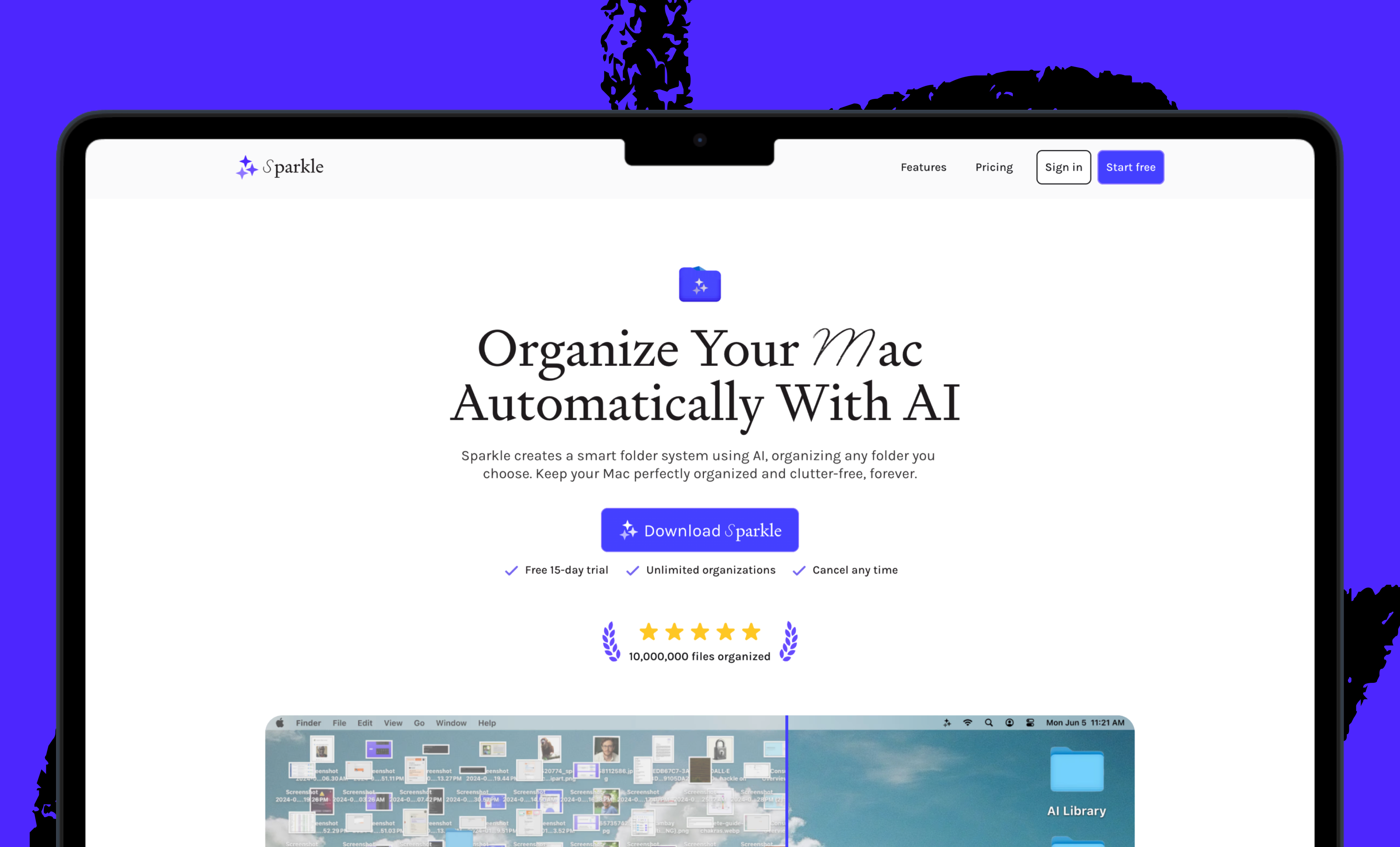
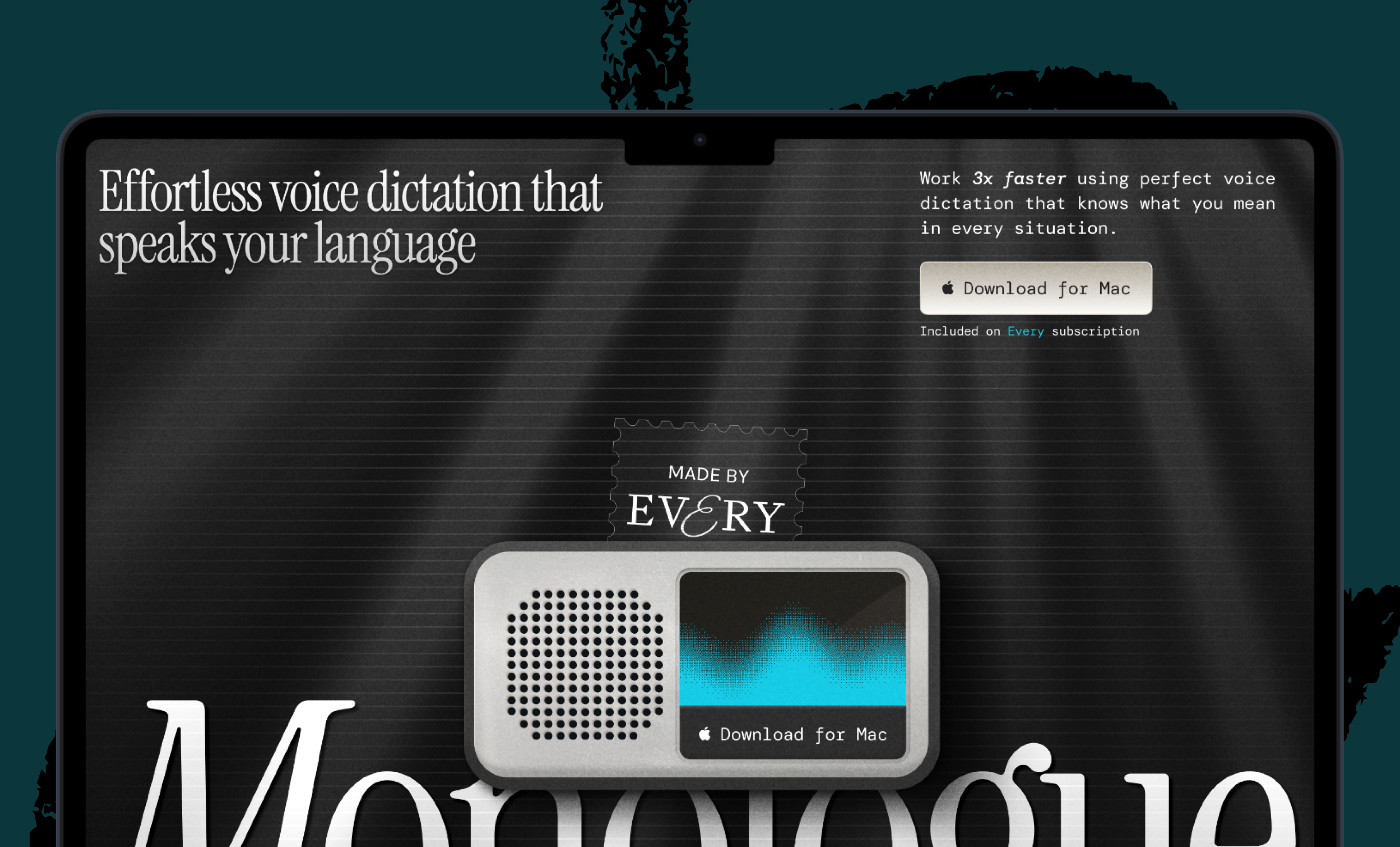
We build AI tools for readers like you. Write brilliantly with Spiral. Organize files automatically with Sparkle. Deliver yourself from email with Cora. Dictate effortlessly with Monologue.
We also do AI training, adoption, and innovation for companies. Work with us to bring AI into your organization.
Get paid for sharing Every with your friends. Join our referral program.
For sponsorship opportunities, reach out to sponsorships@every.to.
 Subscribe to read the full article
The Only Subscription
You Need to
Stay at the
Edge of AI
The essential toolkit for those shaping the future

"This might be the best value you
can get from an AI subscription."
- Jay S.
 Every Content
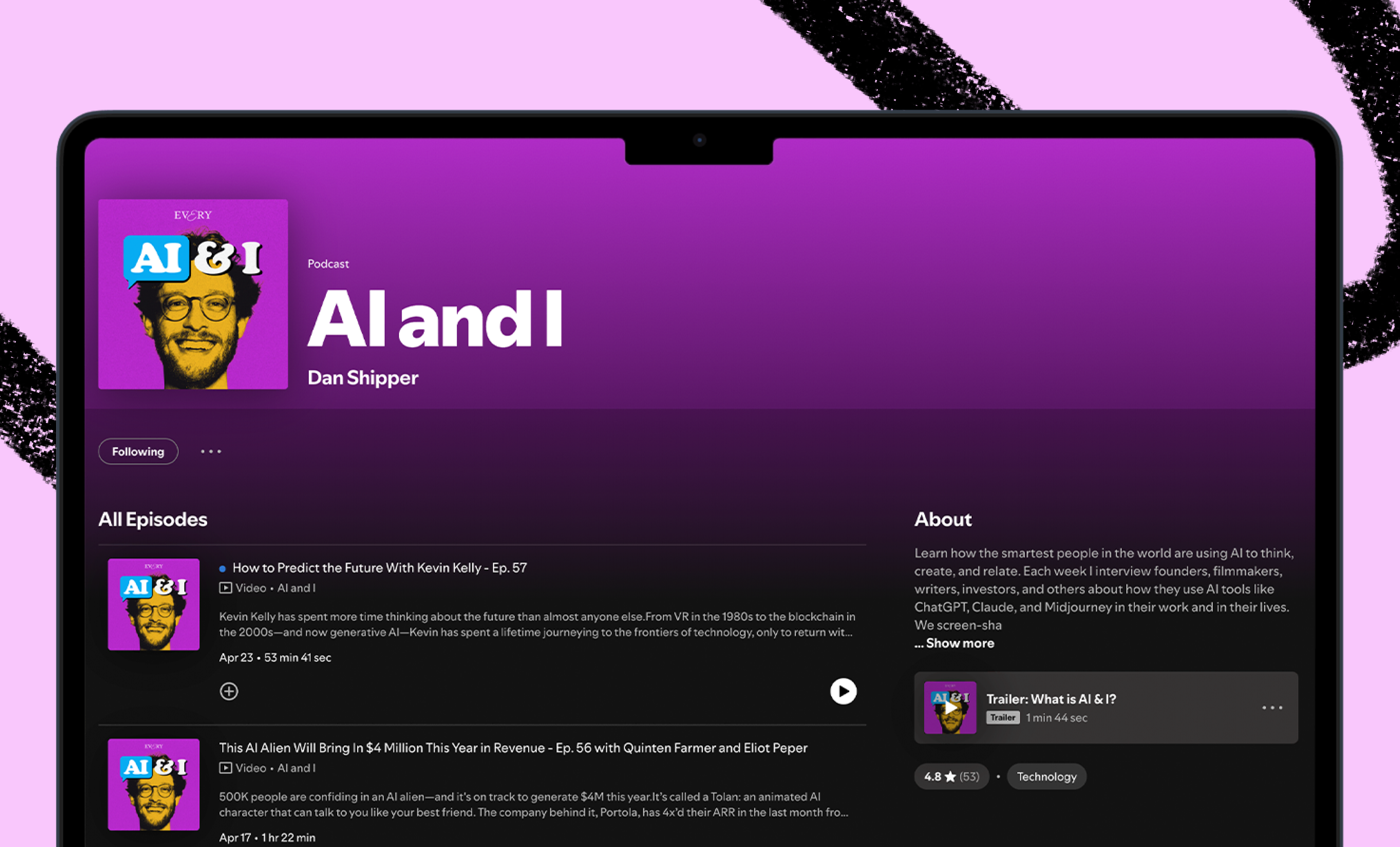
 AI&I Podcast
 Monologue
 Cora
Cora
 Sparkle
 Spiral
Join 100,000+ leaders, builders, and innovators

Email address

Already have an account? Sign in
What is included in a subscription?
Daily insights from AI pioneers + early access to powerful AI tools



 Front-row access to the future of AI
 In-depth reviews of new models on release day
Playbooks and guides for putting AI to work
Prompts and use cases for builders
In-depth reviews of new models on release day
Playbooks and guides for putting AI to work
Prompts and use cases for builders
In-depth reviews of new models on release day
Playbooks and guides for putting AI to work
Prompts and use cases for builders
In-depth reviews of new models on release day
Playbooks and guides for putting AI to work
Prompts and use cases for builders
 Bundle of AI software





 Edmar Ferreira

 Katie Parrott
.12.16_PM.png)
 Rhea Purohit
 Reviews of new AI models on release day